Skip to main content

Features

From the first referral to the NDIS claim.

Everything a provider runs in a week, in one workspace. Every screen on this page is FormaOS itself, filled with a sample provider and invented names.

How the pieces fit

Everything hangs off the shift.

A shift carries its clock times and its note through to the timesheet, the invoice and the claim, so nothing is typed in twice.

Participants and their plans

Each participant on one record: their plan and budgets, contacts, care plans, medications and documents.

  • Budgets for each support category warn at the level you set, and show the date the money runs out at this rate.
  • Put a plan on billing hold, or renew it with the bill-to details and budget lines copied across.
  • Care plans, goals and medications, with each dose recorded against the worker who gave it.
  • Documents stay with the record: PDF, photo, Word or Excel, up to 10 MB each.
  • Referrals come in from your own form and become participants in one step.
The Funding tab for Matilda Hayes, a sample participant. Her NDIA managed plan runs from 16 January 2026 to 15 January 2027. Daily life shows $2,694.06 of $4,304.00, with $551.85 rostered and $1,058.09 left. Community participation shows $12,322.16 of $15,809.00. Support coordination shows $0.00 of $800.00.
A plan’s budgets, each with what is invoiced, delivered but not billed, rostered and left.
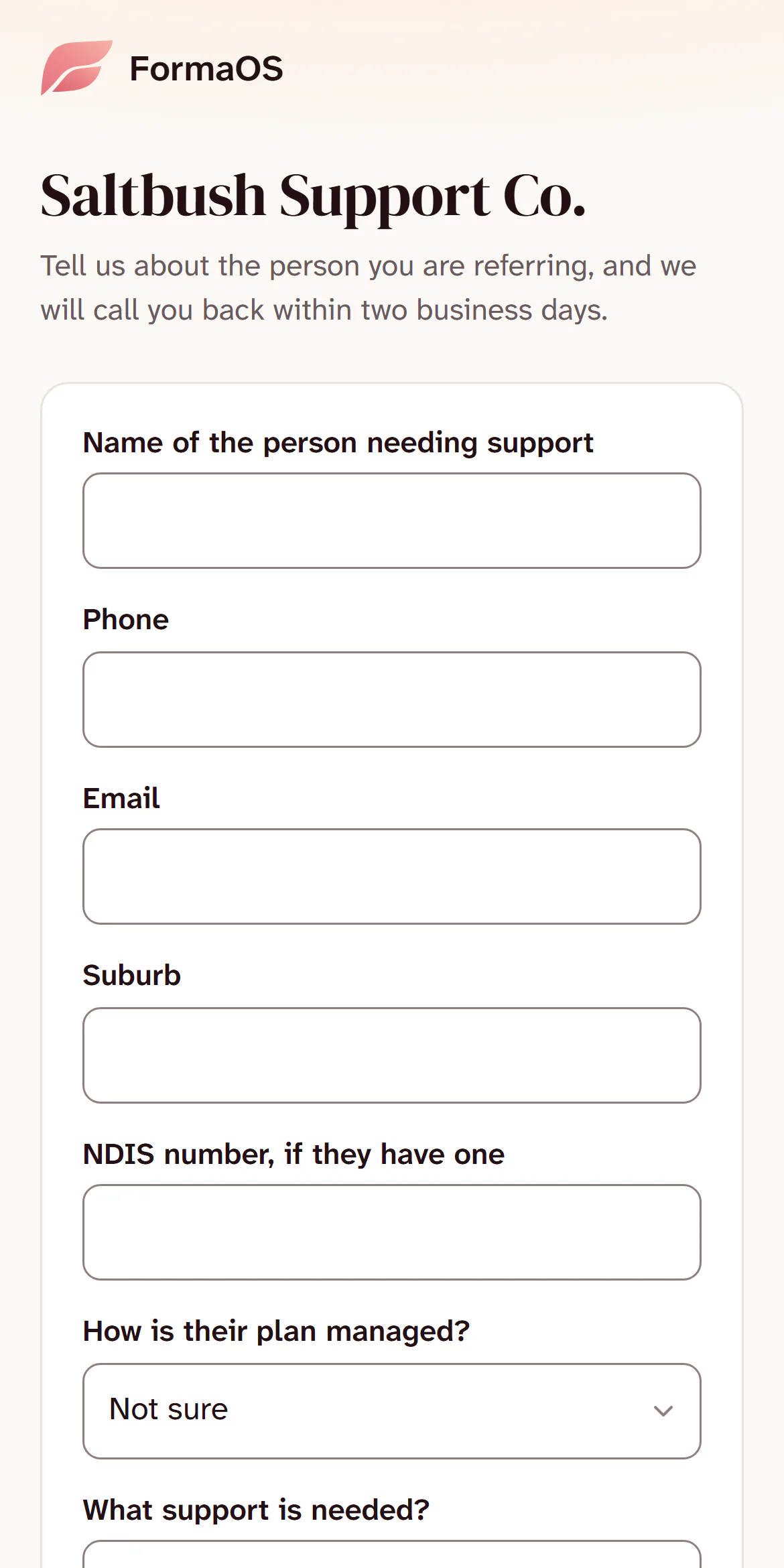
A provider’s referral form on a phone, headed Saltbush Support Co. It asks for the name of the person needing support, a phone number, an email address, their suburb, their NDIS number if they have one, and how their plan is managed.
Your referral form. Each one lands in Referrals.

Service agreements, signed on a phone

A schedule of supports, sent by email and signed with a finger or a mouse.

  • Add the schedule of supports, check the wording and who signs, then send it.
  • The signing link works for 14 days.
  • A signed copy is locked, with the name, the time and a fingerprint of what was signed.
  • To change one, make a new version. The signed one stays as it was.
  • Start from your own template, and have a lawyer or your auditor check it fits how you work.
The Service agreements screen for a sample provider: 8 waiting to sign and 3 ending in the next 60 days. Each agreement lists its participant, the dates it runs, its value, and a status of Signed, Sent, Draft or Expired.
Every agreement, with its dates, its value and whether it is signed.
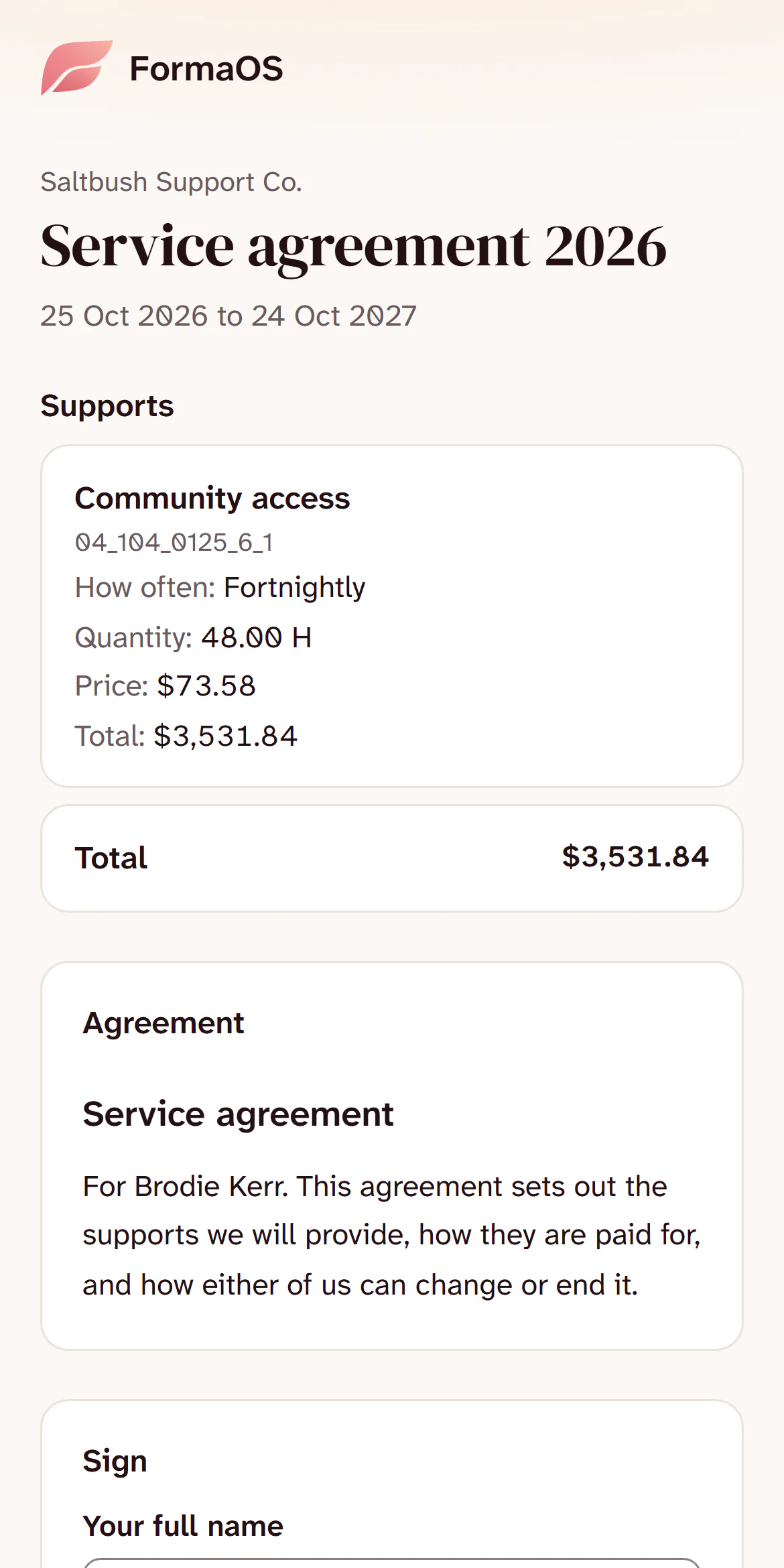
A service agreement opened on a phone to be signed. It shows Service agreement 2026 from Saltbush Support Co., running 25 October 2026 to 24 October 2027. Its one support is Community access, item 04_104_0125_6_1, fortnightly, 48 hours at $73.58, a total of $3,531.84. Under it are the agreement wording and a box for the signer’s full name.
What the person signing sees, on their own phone.

The roster, and the people on it

Build the week, fill the gaps, and tell everyone once.

  • Drag a shift to another worker or day. Suggest a worker ranks who is free, who knows the participant and who is under their hours.
  • Award alerts mark two shifts at once, too little rest, or a worker who cannot do the shift.
  • Build a week as drafts, then publish: each worker gets one message.
  • Open shifts are offered to workers who are free and suitable, and they ask for them from their phone.
  • Messages keep shift talk on the record instead of in WhatsApp, and Forms cover what you check, such as a vehicle or a hazard.
The Roster screen: the week of 2 to 8 November as a grid, with a row for each worker and a row for open shifts. Each shift shows its times, its participant and the support. Finished shifts are marked Done and one is marked Missed.
A week of the roster: a row for each worker, and open shifts at the top.
The Leave screen for a sample provider, with 4 requests waiting. Each request shows the worker, the dates, the type of leave and the reason, and the waiting ones have Approve and Decline buttons.
Leave to approve. Shifts during approved leave are flagged on the roster.

On a worker’s phone

Workers sign in on their own phone. FormaOS runs in the phone’s browser and can sit on the home screen, so there is nothing to download.

  • Clock in and out with the time and, if the phone shares it, the place.
  • Kilometres and unpaid breaks go in at clock out.
  • The progress note opens as the shift ends, on the right participant and shift.
  • A worker sees only their own shifts and the participants they support.
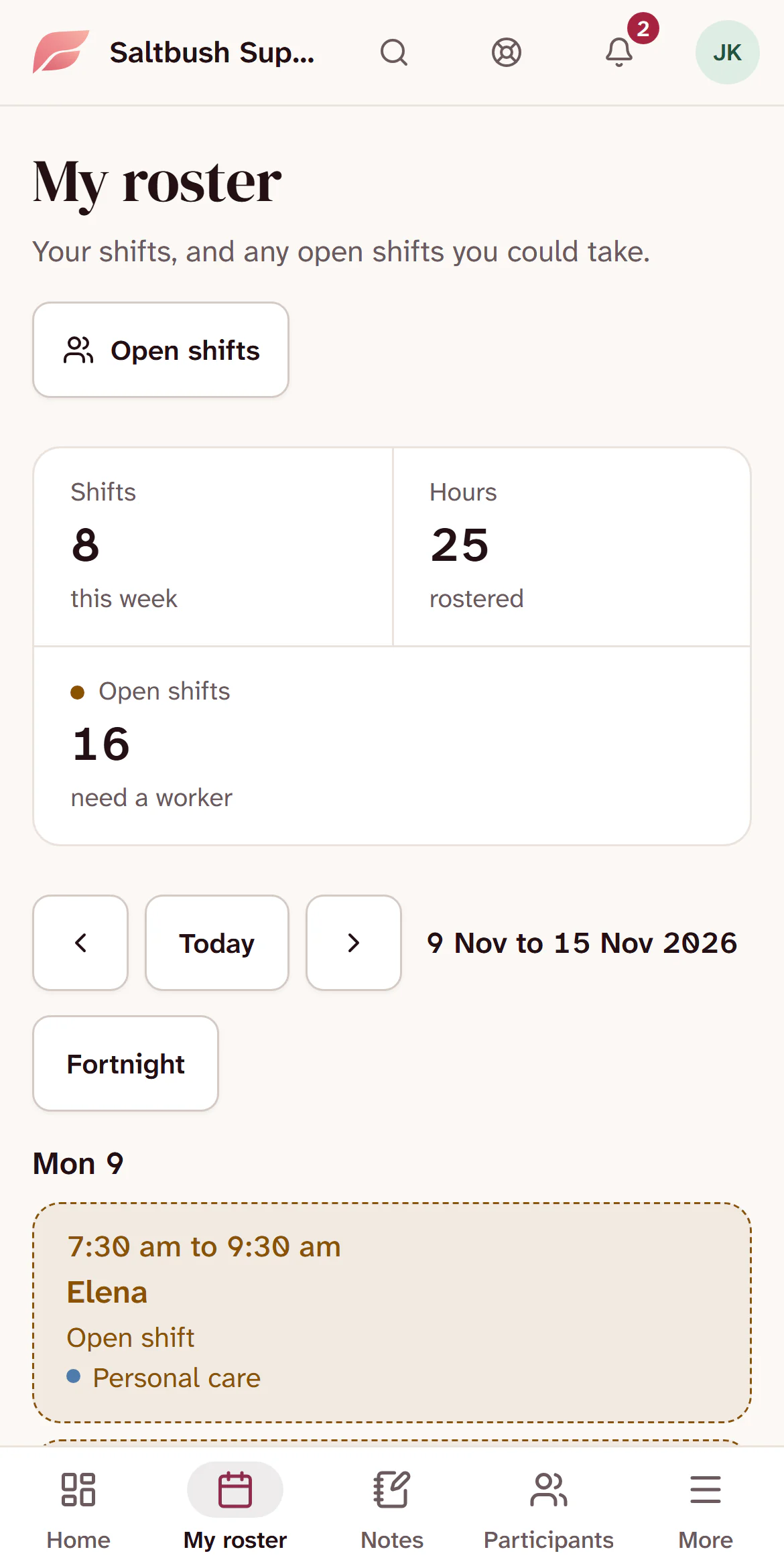
My roster on a support worker’s phone: 8 shifts and 25 hours this week, 16 open shifts that need a worker, and Monday’s shifts listed below.
My roster: the week, and the open shifts they could take.
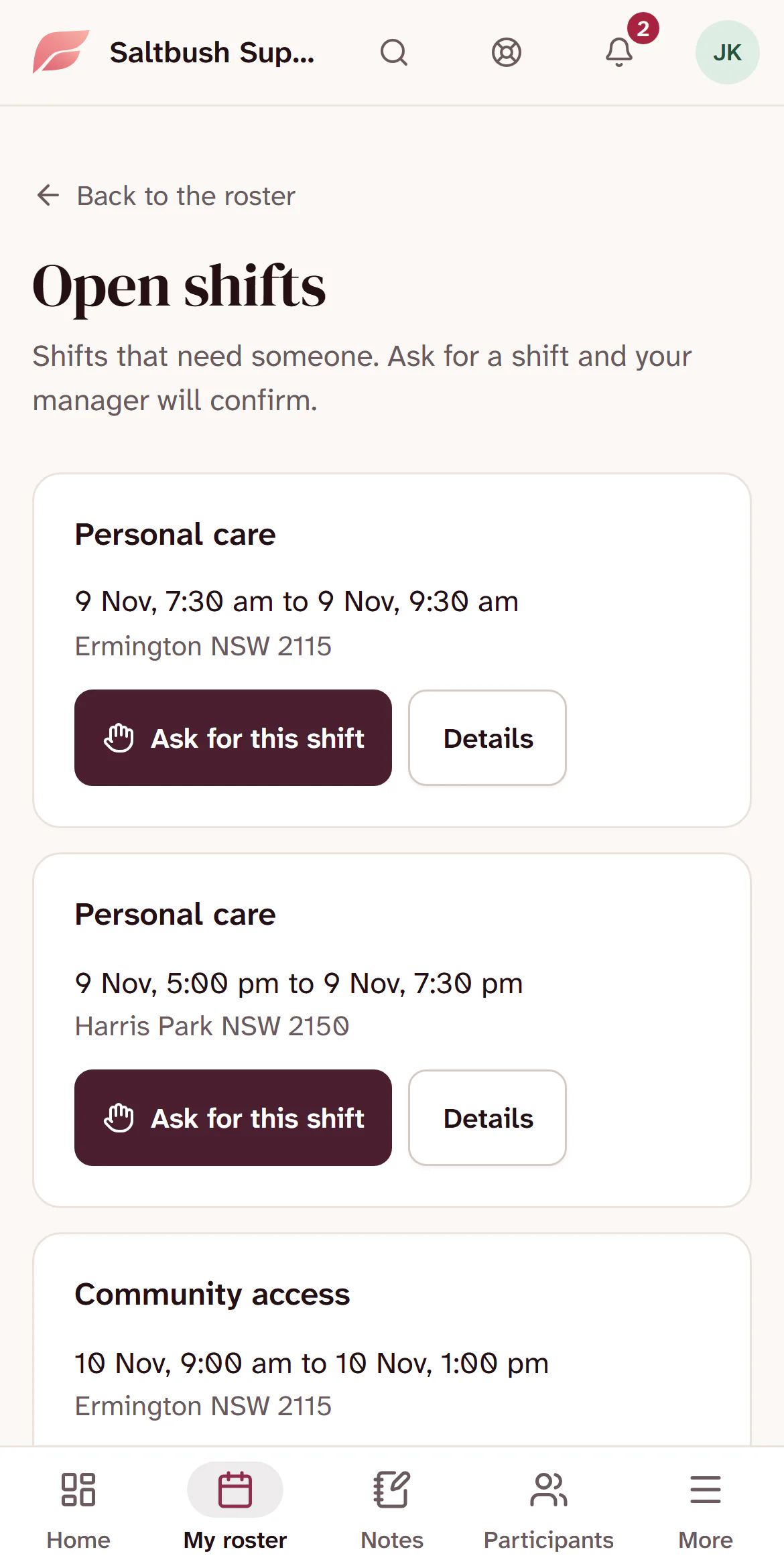
Open shifts on a support worker’s phone. Each shift shows the support, the date and time and the suburb, with an Ask for this shift button.
Open shifts, each one a tap to ask for.
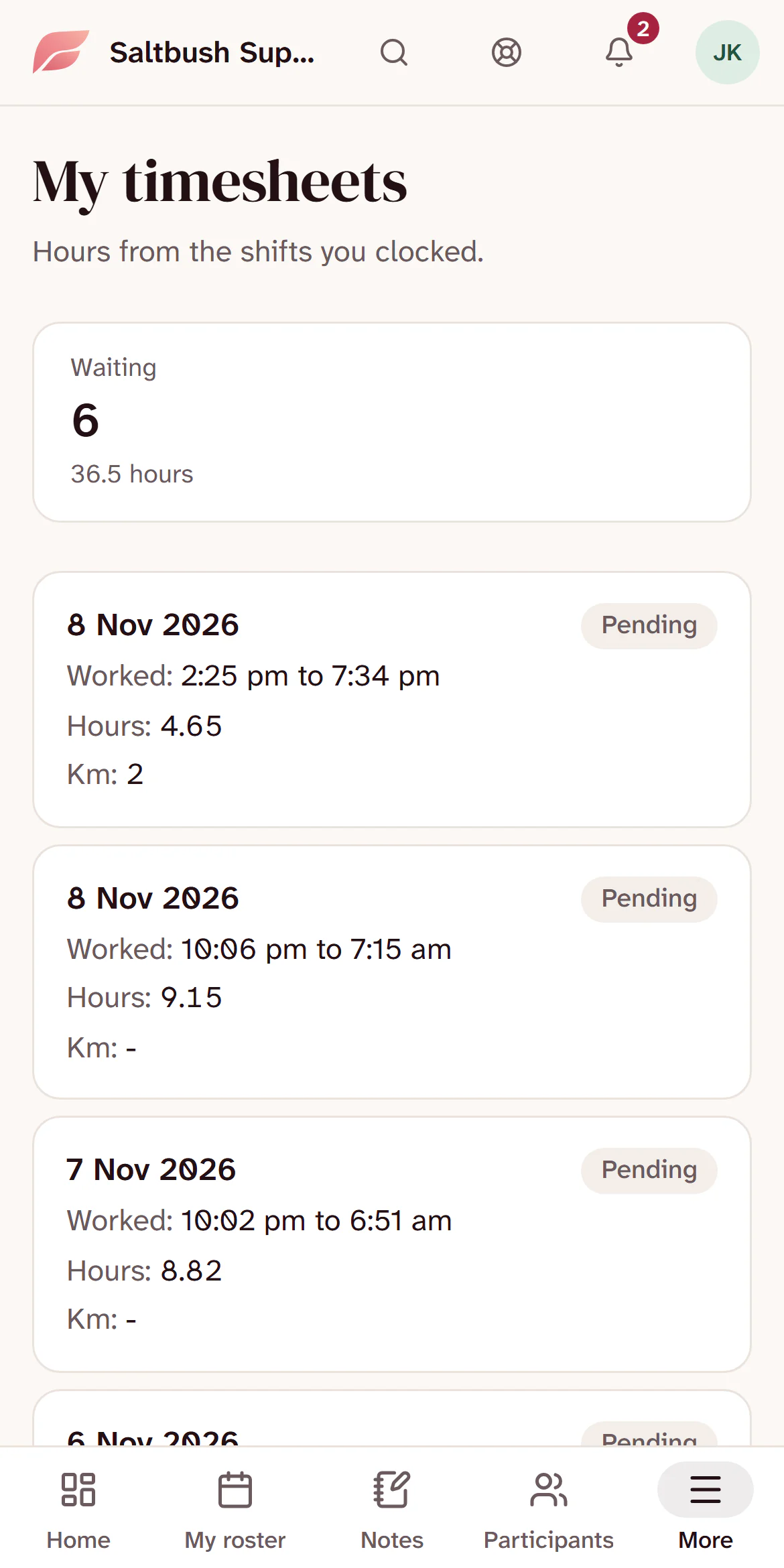
My timesheets on a support worker’s phone: 6 waiting, 36.5 hours. Each one lists the date, the times worked, the hours and the kilometres, marked Pending.
Their own hours, as they clocked them.
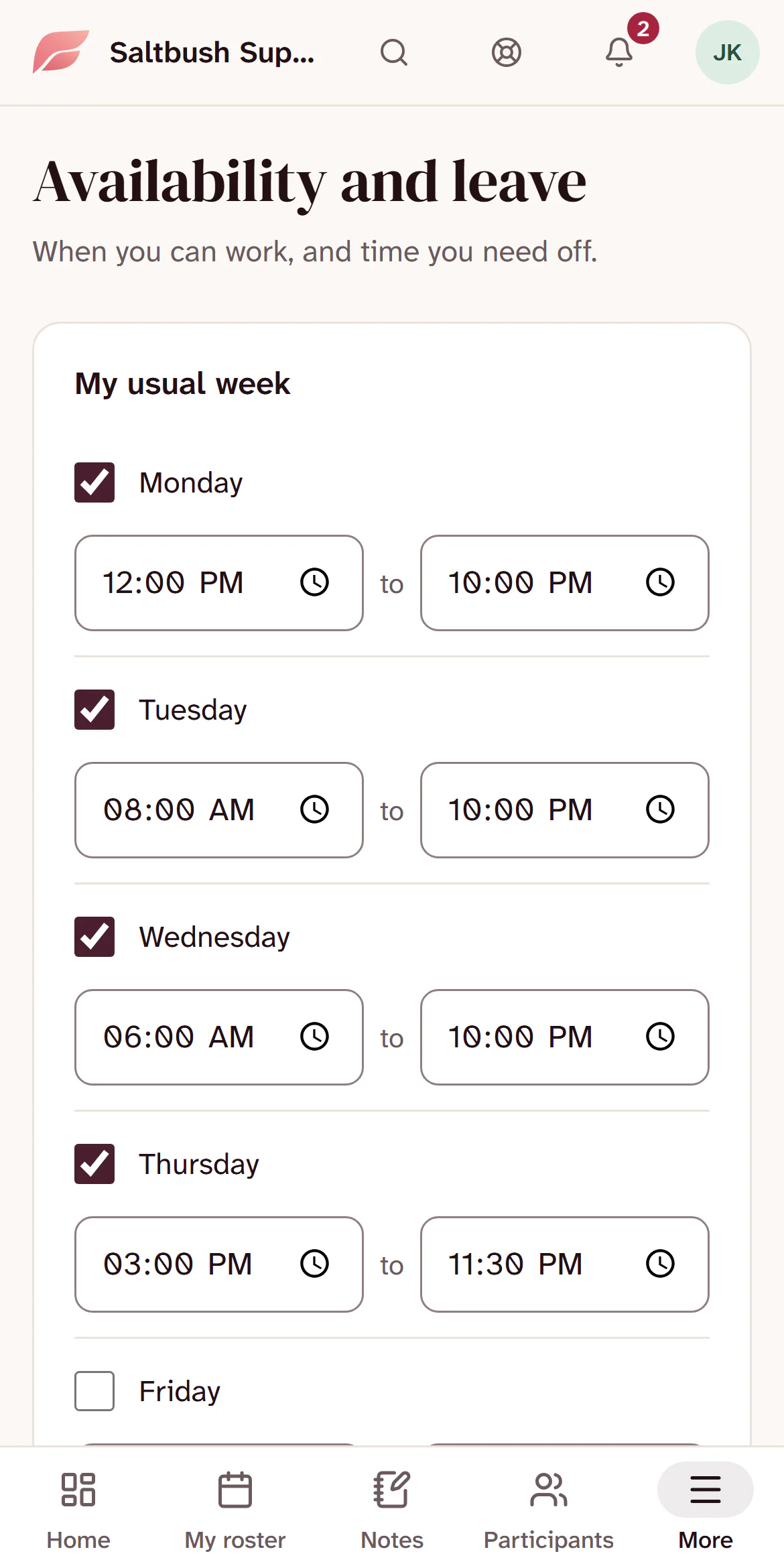
Availability and leave on a support worker’s phone, with their usual week: the days they can work, each with a start and end time.
Their usual week, and time off.

Notes, incidents and worker checks

The records an auditor samples, kept as the work happens.

  • A reportable incident starts a 24-hour clock, and the 5-day report opens with it. Both stay on Home until a manager records them as lodged.
  • Corrections need a reason, and what was filed is kept.
  • Checks and certificates remind the worker and their managers 60, 30 and 7 days before they run out.
  • NDIS Worker Screening checks are looked up and verified, and who checked and when is kept.
  • Every finished shift needs a note, and managers sign notes off.
  • FormaOS does not lodge reports. You do that in the NDIS Commission’s portal.
Liam Fraser’s injury report in FormaOS. A clock on the report reads: Notify the NDIS Commission by Thu 5 Nov, 6:20 pm ACDT, 9 hours left. Under it are fields to record when it was lodged and its reference, and a Record as lodged button.
A reportable incident, with the hours left to tell the NDIS Commission.
Tom Whitfield’s checks and certificates in FormaOS. First aid, 2 Nov 2026, is marked Expired. NDIS Worker Screening, 6 Aug 2028, is marked Verified.
A worker’s checks: an expired first aid certificate, and a verified screening check.

Timesheets and pay runs

Hours come from the clock, are checked against the award, and go to payroll as a file.

  • Clocking out makes the timesheet.
  • SCHADS award alerts flag broken shifts and too little rest between shifts.
  • Approve the hours, close the pay period, and download hours by pay category.
  • FormaOS sorts the hours. Your payroll system works out the dollars.
  • Travel, training and meetings can go on a timesheet too.
The Timesheets screen for a sample provider, with timesheets to approve. Each row shows the worker, the date, the times worked, the hours and kilometres. Warnings under two of them read: Broken shift spans 12.15 hours, and Only 7.57 hours rest between shifts.
Timesheets to approve, with an award warning wherever one applies.
The Pay runs screen. A note says these files sort hours into pay categories and dollar amounts are worked out in your payroll system. Each pay run lists its period, timesheets and hours, with Hours by category and Shift detail downloads.
Each pay run, ready to download for your payroll system.

Invoices and NDIS claims

Delivered shifts become priced invoices, and NDIA managed lines go to PRODA in one file.

  • Prices come from the NDIS Support Catalogue, and a shift that runs into a dearer time is billed at the higher rate.
  • Upload the bulk claim file to the myplace portal, then import the results: paid lines are recorded as payments.
  • Plan managed, self managed and private invoices go out as PDFs by email.
  • Export for Xero downloads a file for Xero’s invoice import.
  • A paid line can be reversed, which frees the shift to bill again and says which claim to cancel in the portal.
Run invoices for a sample provider: 264 delivered shifts ready to bill, worth $78,280.73 excluding GST. They are grouped by participant, and each shift shows its date, its support and time of day, its NDIS item number and the hours times the price.
Delivered shifts not yet billed, priced by when they actually ran.
The NDIS claims screen: 110 lines ready to claim, worth $39,399.13, and none needing a fix. Each line shows its date, participant, support item, quantity, price and total, ready for Create claim file.
Approved NDIA managed lines, ready for the bulk claim file.
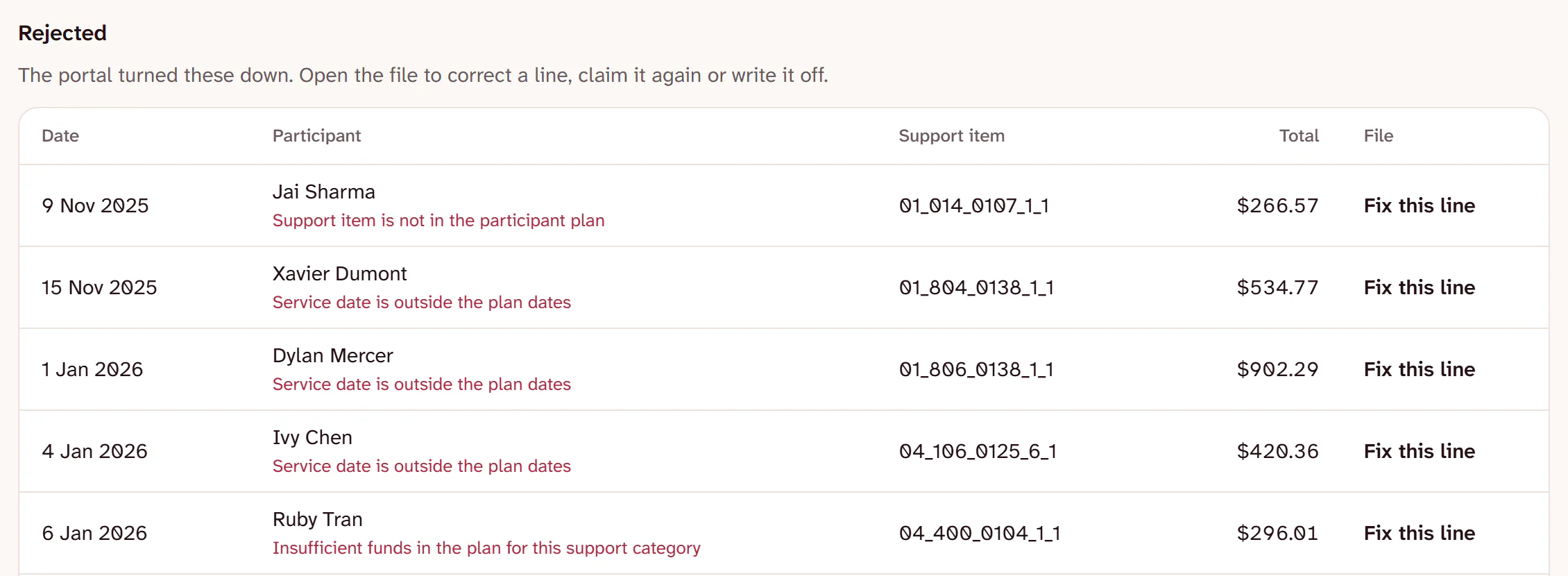
Rejected claim lines. The portal turned these down: each line shows its date, participant, support item and total, with the reason, such as Support item is not in the participant plan or Service date is outside the plan dates, and a Fix this line link.
When the portal turns a line down, it says why. Fix it and claim again, or write it off.

Reports

Nine reports on how the business is running. Each one downloads as a spreadsheet.

  • Hours delivered by participant
  • Worker hours and margin
  • Revenue by participant
  • Revenue by support category
  • Delivered but not invoiced
  • Shifts with no progress note
  • Cancellations
  • Expiring checks
  • Plan utilisation
The Worker hours and margin report for a sample provider. Each worker’s row shows their hours, what was billed, their base wages and the margin before on-costs.
Worker hours and margin: hours, billing, base wages and the margin before on-costs.

Families and auditors

Share what you choose with the people the participant chooses, and take it back at any time.

  • Record who gave consent, when and how, before anyone gets access.
  • Family members sign in with a link sent to their email. There is no password to forget.
  • They see coming shifts and the worker’s first name, and can ask for a change. You answer from Family requests.
  • Notes, budgets and invoices only appear if you tick them. Revoke stops access at once.
  • An outside auditor gets a read-only link to the records you choose, for 7 to 90 days.

The Family portal on Liam Fraser’s record. Michael Fraser has access and sees shifts and notes. Consent came from Liam Fraser on 14 October 2026, in person. A Revoke button sits beside him.
Who has the portal, what they see, and who gave consent.
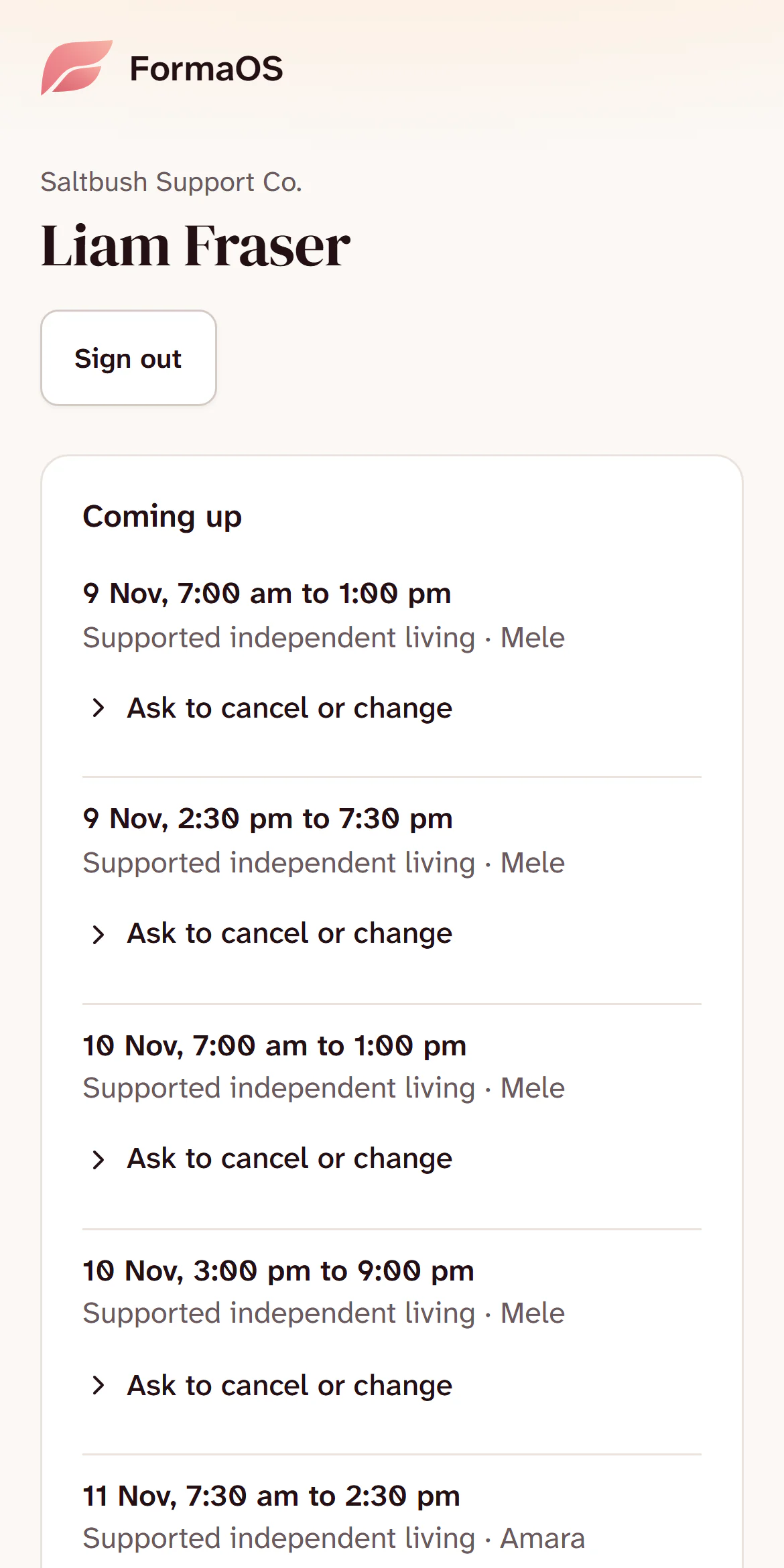
The family portal on a phone for Liam Fraser. Under Coming up, each shift shows its date and time, the support and the worker’s first name, with an Ask to cancel or change link.
What a family member sees: coming shifts, and who is coming.

Moving in, and moving out

Bring your spreadsheets in on the first day. Take everything with you if you ever leave.

  • Import participants, workers, checks and rosters from Excel or CSV, and see what will load before anything saves.
  • Every row left out says why, and an import can be taken back out.
  • On Growth, upload your spreadsheets from Settings and we load them for you.
  • Download everything as one zip, with your uploaded files, even after your plan ends.
  • Each download is written to your audit log.
Export your records. A full copy of what the organisation holds, as a zip of spreadsheets: participants, contacts and referrals, plans, budgets and agreements, notes, care plans, medications, incidents, shifts, timesheets and pay runs, workers and their checks, invoices, payments and claims, forms, tasks and messages, and the audit log. A note says each download is written to the audit log.
A full copy of your records, as spreadsheets another system can read.
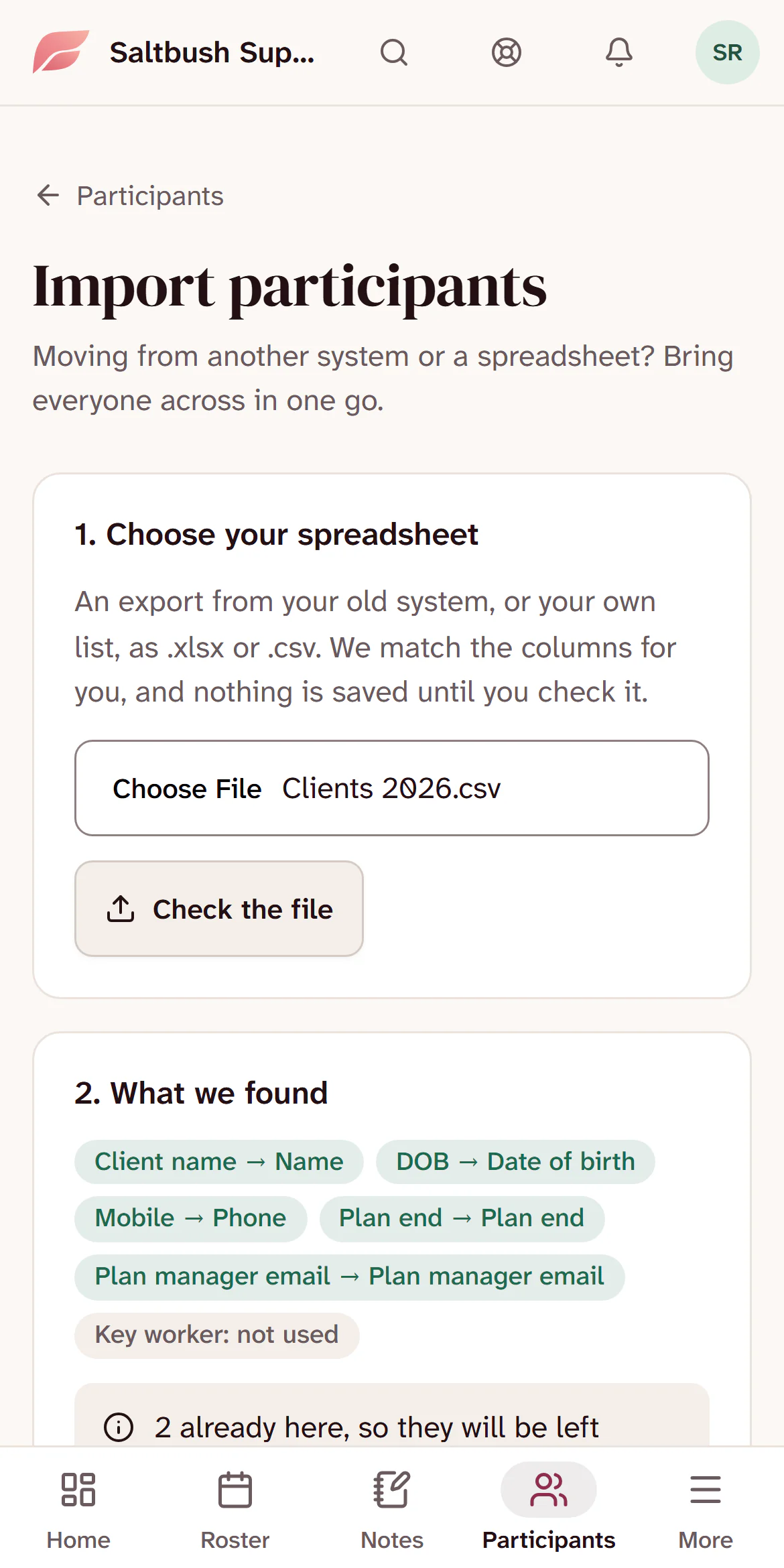
Importing participants on a phone. A file called Clients 2026.csv is chosen, and What we found matches its columns: Client name to Name, DOB to Date of birth, Mobile to Phone, Plan end to Plan end, and Plan manager email. Key worker is not used.
An import, matched column by column before anything saves.

Before you move

What it does not do yet.

Better to know now than after you have moved.

  • Offline mode

    Clocking in and saving a note need a phone signal. A note you are writing stays on the phone if the signal drops.

  • A store app with push alerts

    Workers use FormaOS in their phone browser and can add it to their home screen.

  • Live accounting links

    Invoices download as a file for Xero. There is no live sync, and no MYOB link.

  • Payroll system links

    Pay runs download as a CSV file. There is no KeyPay link, and FormaOS sorts hours rather than calculating pay.

  • Group shifts and ratios

    A shift has one participant. There are no SIL house records or group billing.

  • SMS and direct NDIA claiming

    There are no text messages yet. NDIA claims go through the PRODA bulk file.